Design Studio & Craft Space
couldcodingArt & Design
3.130.00 Reviews
- Version
- 26.0
- Installs
- 10.00K
- Age Rating
- Everyone
Screenshots
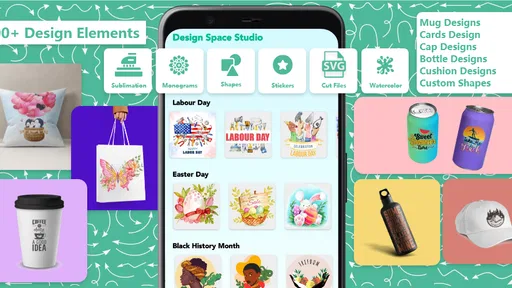
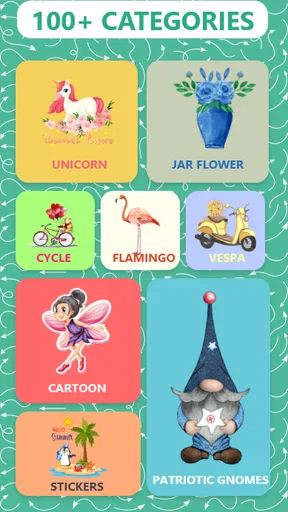
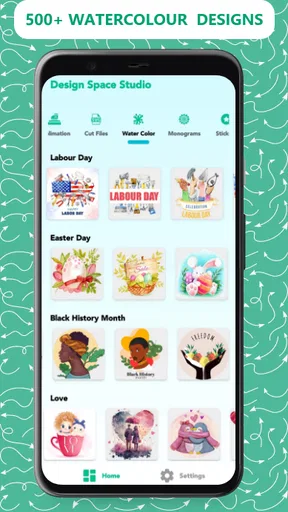
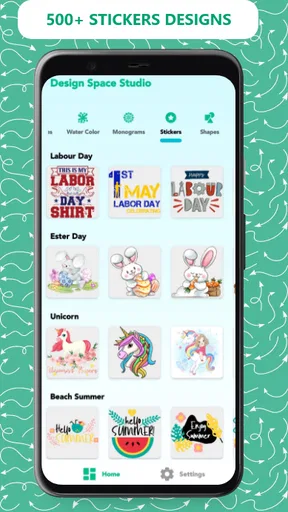
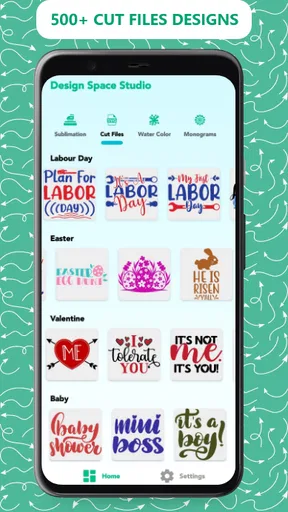
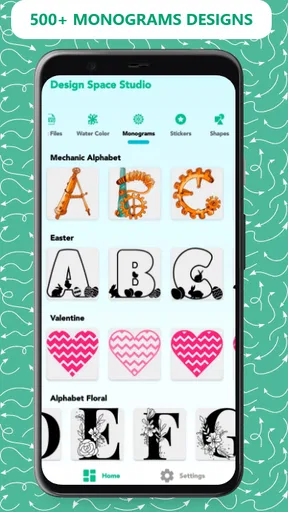
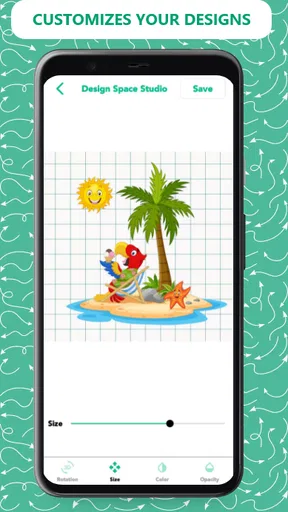
Our Review of Design Studio & Craft Space
 Analysis by Appyee
Design Studio & Craft Space is the kind of app I would open when I have a project in mind but not the artwork to finish it. It brings fonts, monogram-style designs, and cut files into one mobile workspace, aiming at people who make labels, cards, decals, gifts, and other DIY pieces. My overall view is positive but measured: it is most useful as a source of ready-made design material, not as a full replacement for a professional vector editor or a dedicated cutting-machine workflow.
The app is free to install, which makes it easy to test without committing money at the start. Its catalog is aimed at everyday crafting rather than advanced illustration, and the Everyone age rating fits that approachable direction. The developer is couldcoding, and the current release is version 26.0. I found the app most convincing when I treated it as a quick idea-and-assets tool: browse, choose a suitable design, adjust the wording or arrangement where possible, and then move the finished concept into the rest of my crafting process.
That distinction matters. A large collection can save time, but it does not automatically make every design practical. A file that looks attractive on a phone may be too detailed for a small sticker, too thin for a cut material, or difficult to weed by hand. The useful question is not simply whether the app has many designs. It is whether the design you choose matches the size, material, tool, and skill level of your project.
What stands out when using the design library
When I explore the design library, I focus not just on whether an image looks appealing, but on how easily it could become a clean, readable piece of craft work. A useful next step is to compare a few options at the size and material you actually plan to use; that small check can reveal which designs are practical before you commit to a project.
A practical starting point for DIY projects
The strongest part of Design Studio & Craft Space is the combination of three things crafters often search for separately: decorative lettering, monograms, and cut-ready artwork. That mix gives the app a clear everyday purpose. I can imagine using a monogram for a mug or tote bag, a decorative font for a birthday sign, and a simple cut file for a label without changing between several unrelated apps.
The catalog is described as containing over one thousand SVG designs, fonts, and cut files. I would not interpret that figure as a promise that every item will suit every project. Instead, I see it as a broad pool of starting points. The real value depends on how quickly I can identify clean, usable artwork rather than merely scrolling through attractive thumbnails.
SVG files are especially relevant for craft work because they are commonly used when a design needs to remain sharp while being resized. That does not mean every SVG is automatically ready for a machine or material. I still need to check whether the artwork has separate elements, enclosed shapes, tiny gaps, or overlapping parts that could complicate cutting. The app can provide the starting file, but practical preparation remains part of the job.
Where the font and monogram choices help
The font section is useful when the project needs a personal touch rather than a complete illustration. I found this more flexible than relying only on finished templates. A name, short phrase, or initial can change the purpose of a design quickly, especially for invitations, gift tags, classroom items, or simple home labels.
Monograms are another sensible inclusion because they work well with small personalized objects. They can make a plain project feel intentional without requiring much drawing skill. The trade-off is that ornate lettering should be treated carefully. Fine strokes and tightly packed flourishes may look elegant on screen but become frustrating when cut from vinyl, cardstock, or another material that needs clean separation.
My practical tip is to decide the final physical size before becoming attached to a design. If the finished piece will be small, I would choose a heavier font, reduce unnecessary decoration, and avoid letters with narrow internal spaces. For a larger sign or wall piece, more detail may be worthwhile. This simple decision prevents a common mistake: selecting artwork for its appearance at preview size rather than for how it will behave in the finished craft.
A mobile workflow that suits quick decisions
The app makes the most sense in short sessions. I can browse while planning a project, save a few ideas mentally or in my notes, and return when I know the wording and material. That is more convenient than opening a complex desktop design program just to find a basic monogram or a simple decorative phrase.
There is also a useful separation between inspiration and production. I can use the library to settle on a visual direction before buying materials. For example, if I am preparing a small gift set, I can compare a bold label style with a script style first, then decide whether the project needs vinyl, paper, or another surface. This reduces wasted preparation and makes the crafting session more focused.
However, I would not expect the mobile interface to replace the careful inspection available in a full design application. On a phone, small overlaps and thin lines can be easy to miss. Before producing anything, I would zoom in, examine the edges, and check whether the design contains details that will be difficult to cut, print, or assemble.
One realistic project from start to finish
Imagine I am making personalized storage boxes for a child’s room. I could begin by browsing the monogram designs and choosing a style with clear, sturdy letters. Next, I would select a font for the child’s name, keeping the lettering readable at the size of the box. Rather than combining several complicated decorations, I would use one accent cut file and leave enough empty space around the name.
Before cutting, I would test the arrangement on scrap material. This is where the app’s limitations become part of a sensible workflow: the design is a proposal, not a guarantee. A test would reveal whether the letters are too delicate, whether the monogram competes with the name, and whether the overall width suits the box. If the test works, I can proceed with the final material; if not, I can return to the library and choose a simpler option without wasting the finished surface.
This kind of project shows the app at its best. It shortens the creative search, offers enough variety to avoid starting from a blank page, and supports personalization without demanding advanced drawing skills. It does not remove the need for judgment, but it makes the early stage less intimidating.
The important weakness: a library is not a complete studio
The name suggests a broad creative workspace, but I would keep expectations realistic. The app’s clearest strength is access to design resources. It is not the first tool I would choose for detailed illustration, complex path editing, precision typography, or a production workflow where every layer and measurement must be controlled.
That limitation affects experienced crafters most. If I already work comfortably in a professional vector editor, I may prefer the control of that environment. I can build custom shapes, inspect paths in detail, manage layers, and prepare files around exact production requirements. Design Studio & Craft Space is quicker for finding a starting point, but it is less attractive when the main goal is to create an original illustration from scratch.
There is also a quality-control trade-off with a large catalog. More choices can make it harder to decide, and not every decorative design will be equally practical. I would judge each item by its intended use rather than assuming that a visually complex file is a better file. For beginners, a simple silhouette with strong spacing may produce a better result than an elaborate design that looks impressive in the preview.
Another point to consider is cost. The app itself is free, but in-app purchases range from $3.99 to $54.99 per item. That makes it important to understand the difference between trying the app and building a larger personal collection. I would begin with the free experience, identify the kind of designs I actually use, and only then consider paying for additional content. A high-priced item may be reasonable for someone completing a specific project, but it is harder to justify if I am only browsing for occasional inspiration.
How it compares with familiar alternatives
Compared with a general image editor, this app has a more focused purpose. A standard editor may offer brushes, layers, filters, and broad visual control, but it may take longer to find craft-oriented lettering or monogram artwork. Design Studio & Craft Space is more convenient when the desired result is a ready-made decorative asset rather than a blank canvas.
Compared with a dedicated cutting-machine application, the comparison is less straightforward. A machine-focused app is usually the better place to handle device-specific settings, material choices, mat arrangements, and final production checks. Design Studio & Craft Space is more useful earlier, when I am looking for an idea or an asset. I would use the two roles together rather than expecting one app to do everything.
Compared with a professional vector program, this app favors speed and accessibility over control. That is a fair exchange for casual makers and beginners. It becomes a poor fit when I need exact path cleanup, intricate custom lettering, repeatable commercial output, or a carefully managed multi-layer composition. The right choice depends on whether I am trying to finish a small project quickly or build a design system I can control in detail.
Who will get the most from it
I would recommend it first to beginners who feel stuck at the blank-page stage. The combination of fonts, monograms, and cut files gives them concrete material to work with, and the free entry point makes experimentation less risky. It is also a good fit for parents, teachers, gift makers, and hobby crafters who need a personalized result without learning advanced illustration techniques.
It may also suit an experienced crafter as a supplementary library. Even if I prefer another tool for final editing, a quick browse can spark a direction for a seasonal project, a small gift, or a batch of labels. The benefit is not necessarily replacing an established workflow; it is reducing the time spent searching for a usable visual starting point.
I would skip it if my main interest is freehand drawing, detailed digital painting, or precise professional vector production. I would also be cautious if I expect every file to be immediately perfect for a particular machine or material. In those cases, a dedicated editor or cutting application will usually provide more control and clearer production tools.
Details worth knowing before installing
The app has passed the early adoption stage without becoming a mainstream design standard: it has over ten thousand installs, an average rating of 3.1 from around ninety ratings, and around thirty written reviews. I read that combination as a reason to try it personally rather than relying on popularity as proof of quality. The audience is real, but the rating also suggests that the experience may not satisfy everyone equally.
Compatibility is fairly broad for older Android devices because it requires Android 5.0 or later. That is helpful if I am using a spare phone or an older tablet for craft planning. Still, the practical experience will depend on screen size and how comfortably I can inspect detailed artwork. A larger display is preferable when comparing designs or checking small letter openings.
The app is free and rated for Everyone, so it is approachable for family craft settings. If a child is involved, I would still handle the design selection and any purchase decisions myself. The age rating describes general suitability, not whether every project is safe or appropriate for a particular crafting tool.
I would also plan my workflow around file organization. After choosing an asset, I would record the project name, intended material, final size, and any changes I made. This is a small habit, but it prevents confusion when several similar monograms or fonts are being considered. It also makes it easier to recreate a successful label later instead of relying on memory.
My final recommendation
Design Studio & Craft Space succeeds when I treat it as a focused source of craft-ready inspiration and decorative assets. Its strongest contribution is convenience: it brings together the kinds of visual elements that make personalized DIY work easier to begin. The fonts and monograms are particularly useful for names, initials, labels, and gifts, while the cut files can provide a quicker route to a finished concept than drawing everything manually.
Its weakness is equally clear. A catalog cannot replace careful preparation, and a mobile design library cannot offer the same level of control as a full vector editor or a specialized cutting workflow. Some designs will need simplification, testing, or further editing before they are suitable for the final material. The paid content also means that “free” should be understood as a low-risk way to start, not necessarily a promise that every useful asset will remain free.
My recommendation is simple: install it if you want a friendly starting point for personalized craft projects, especially lettering, monograms, and cut-file ideas. I would use it alongside a production tool, test delicate designs on scrap material, and avoid paying for a large item until I know the library fits my style. For beginners and casual makers, that balance makes the app worthwhile. For artists who need deep editing control, it is better viewed as a supplementary resource than as their main studio.
In the end, the app earns its place through practical convenience rather than technical ambition. It helps me move from “I want to make something” to “I have a workable design direction” with less searching. That is a meaningful benefit, provided I remember that the final quality still depends on choosing the right design, preparing it carefully, and matching it to the material and project.
Verdict
Strengths of Design Studio & Craft Space
- Simple tools make it easy to sketch, design, and organize creative projects.
- Useful for exploring ideas without needing advanced design experience.
- Supports a relaxed, creative workflow for hobbyists and beginners.
- Project-based layout helps keep different designs separated and manageable.
- Suitable for quick edits and casual crafting plans on a mobile device.
Limitations of Design Studio & Craft Space
- Some advanced design features may be missing for professional users.
- Small screens can make detailed editing and precise placement difficult.
- Large or complex projects may feel slower to manage on mobile.
- The learning process may take time if many tools are unfamiliar.
- Export and sharing options may not meet every project's requirements.
Similar Picks in This Category
View All
Canva: AI Photo & Video Editor
Canva4.8

PENUP – Drawing-sharing SNS
Samsung Electronics Co., Ltd.4.5

Crafto
Kutumb App4.6

Sketchbook
Sketchbook4.1

ibis Paint X
ibis inc.4.5

Adobe Express: AI Photo, Video
Adobe4.6
Frequently Asked Questions
What is Design Studio & Craft Space?
Design Studio & Craft Space is a creative app designed for users who enjoy planning, decorating, and customizing artistic spaces. It typically combines design tools, craft-inspired activities, and visual organization features in one place. Before downloading, users should check the store description to confirm the exact modes, supported devices, and whether the experience is focused on digital creation, interactive projects, or both.
Is Design Studio & Craft Space suitable for beginners?
Yes, the app appears intended to be approachable for beginners, especially users who enjoy experimenting with colors, layouts, decorations, and craft ideas without needing professional design experience. The interface is generally easier to understand when users explore one tool at a time. However, some advanced customization options may require practice, so new users should expect a short learning period before creating more detailed projects.
Does Design Studio & Craft Space work offline?
Offline availability can depend on the feature being used and the version installed on your Android or iOS device. Basic creative tools may work without a constant connection, while downloads, advertisements, cloud saving, updates, or shared content may require internet access. It is best to review the app’s current store listing and test the main functions after installation before relying on it offline.
Is Design Studio & Craft Space free to download?
Design Studio & Craft Space may be available as a free download, but users should carefully review its monetization before starting. Some tools, decorative items, templates, or additional content may be restricted behind in-app purchases, subscriptions, or rewarded advertisements. Checking the pricing section on Google Play or the App Store is recommended, particularly for parents or anyone who wants to avoid unexpected charges.
Is Design Studio & Craft Space safe for children?
The app may be enjoyable for children who like creative activities, but suitability depends on its advertisements, in-app purchases, data practices, and any sharing features. Parents should check the official age rating, privacy policy, and device controls before allowing unsupervised use. If the app includes external links, social interaction, or paid items, parental supervision is especially advisable.
